

🤔 Do you face these challenges when teaching “Giving Directions”?
- 💦 “With paper maps, students don’t feel if their directions were actually understood…”
- 💦 “Students are afraid of speaking English because they might mix up left and right…”
- 💦 “The activity becomes mechanical, just reading fixed phrases…”
This magical app solves these classroom problems and lets students immerse themselves without fear of making mistakes!
✨ No Internet Needed! The Magical “Password” System
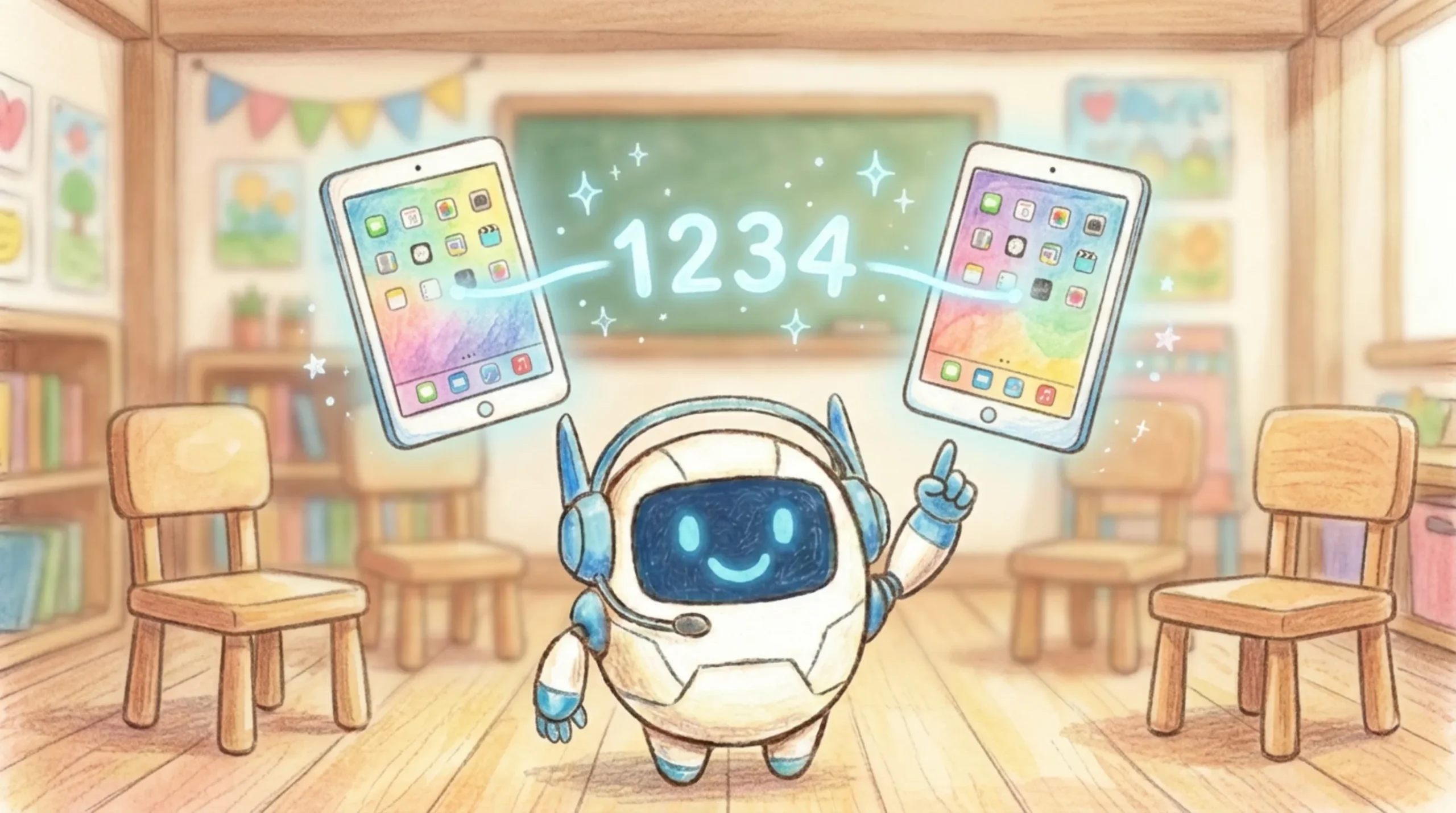
The biggest feature of “Gem Navigator” is its “pseudo-sync system” that puts zero load on school Wi-Fi.
Just by having their partner enter the “4-digit password” shown on the guide’s screen, the “exact same town and starting position” is generated instantly without any communication. Eliminates Wi-Fi troubles during class and allows pair work to start blazingly fast!
🛡️ It’s Okay to Make Mistakes! Reassuring “Preview Feature”

A Universal Design (UD) that is safe even for students who are not confident in speaking English.
The guide’s screen is equipped with a “Ghost Gem-emon” and “Native Voice (Preview)”. Before giving instructions to their partner, they can press a button on their own screen to check “Is this instruction really correct?”, which completely eliminates the fear of making mistakes.
💡 Directly Fosters “Information Literacy”!
The true value of this app lies in developing “information literacy” through English learning.
- [Output] The guide converts the “visual information” of the map into “linguistic information (English)”.
- [Input] The operator converts the heard “linguistic information” into “operation (character movement)”.
- [Evaluation & Correction] Use the preview feature to debug whether your own output information is correct.
- [Information Reconciliation] Finally, show the “Red Correct Route” and “Blue Movement Trace” to each other to compare and analyze whether the information was transmitted accurately.
📱 Steps for Classroom Use
① Choose Roles
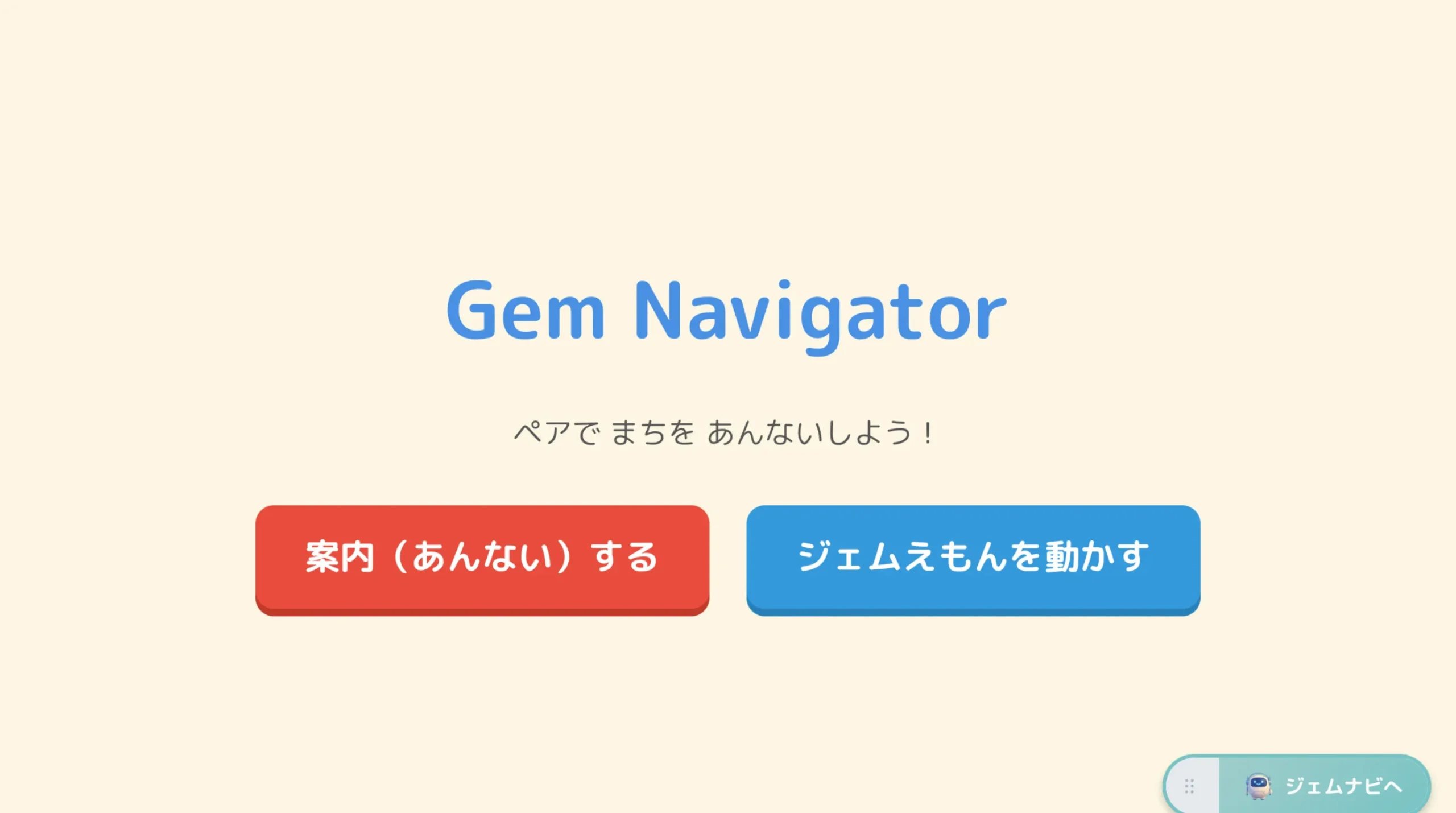
Open the app together and choose either “Guide” or “Move Gem-emon”.
② Enter the Password
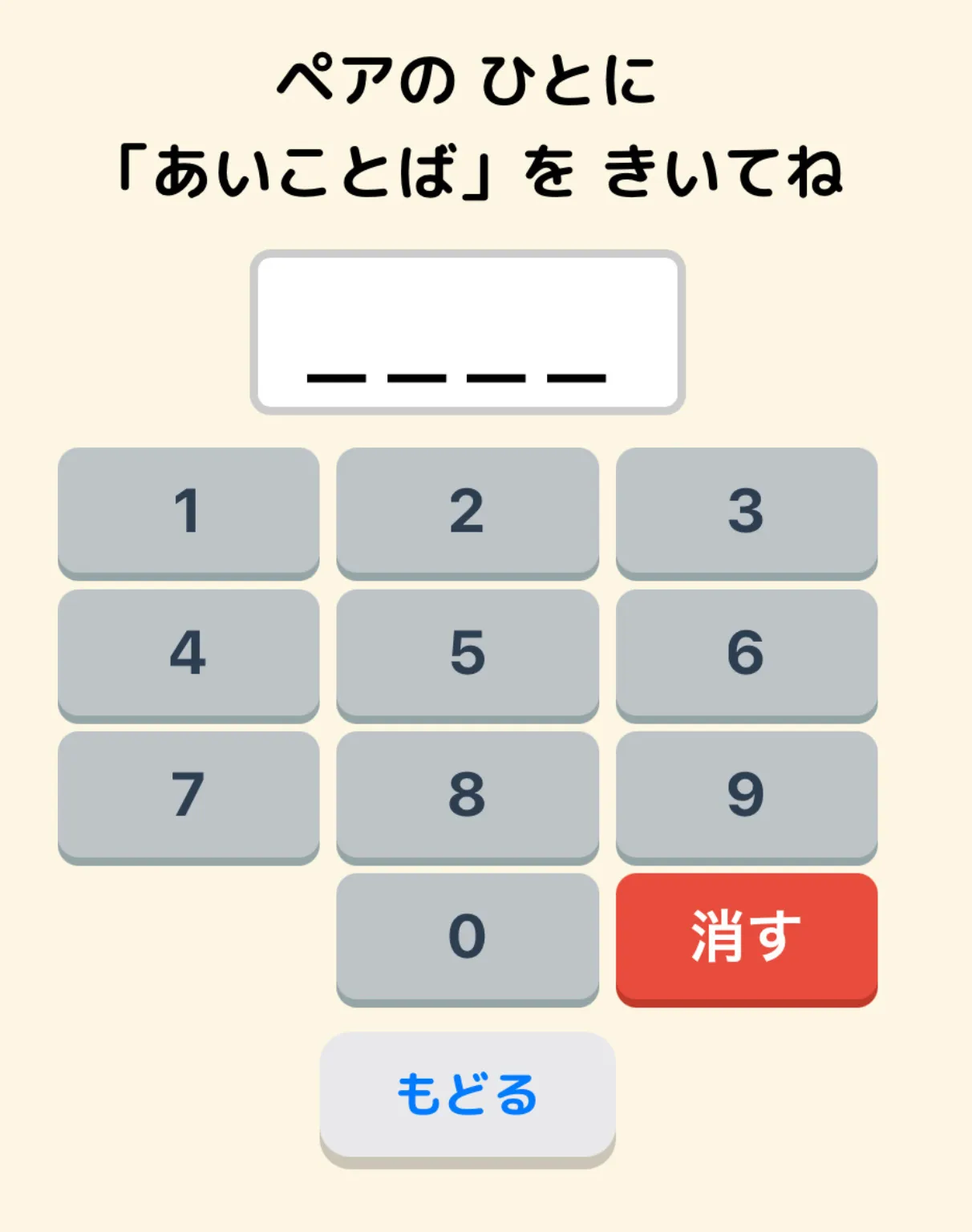
The town completely syncs when the operator enters the 4-digit number shown on the guide’s screen.
③ Check with Preview!
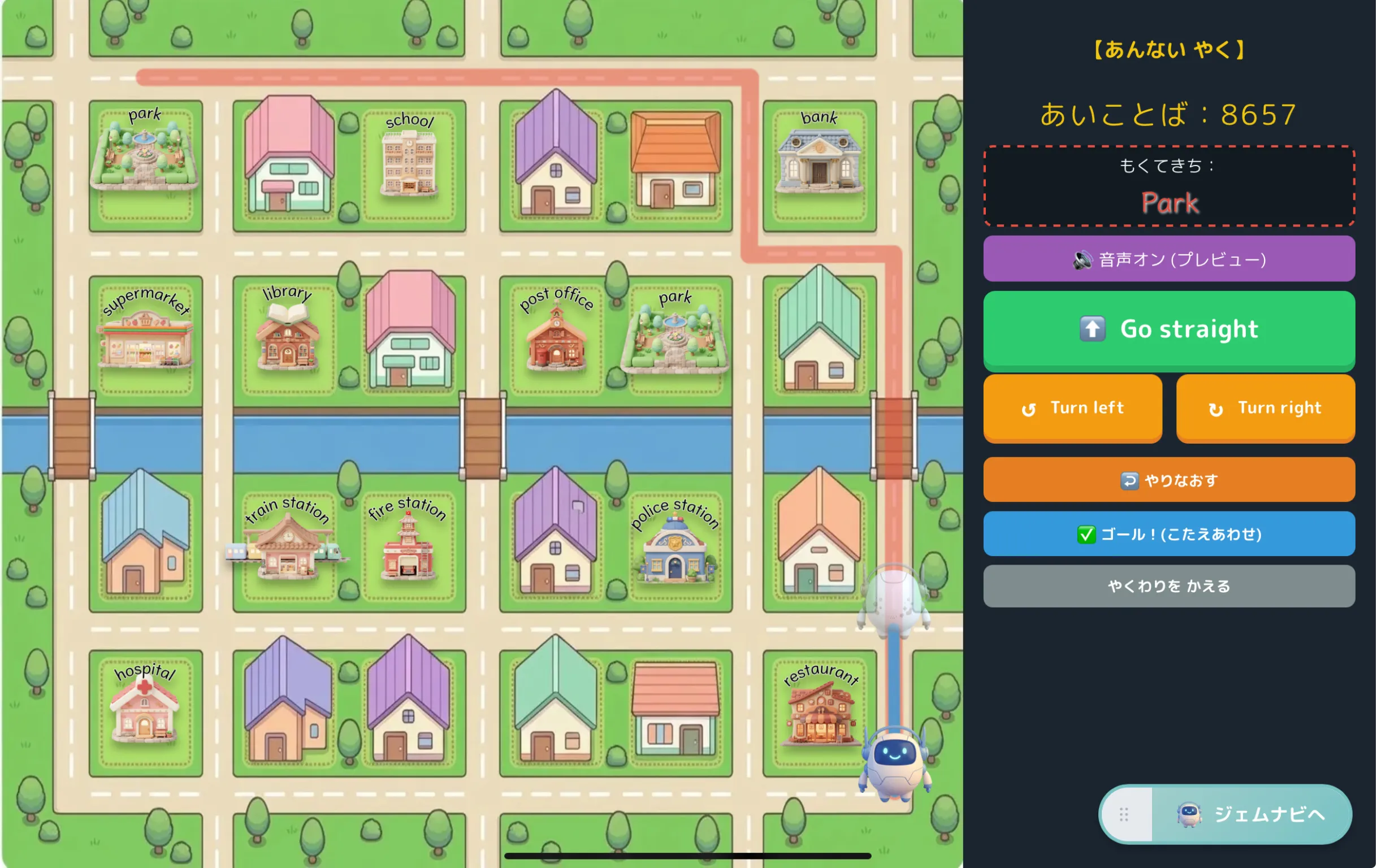
The guide first tries the instructions themselves while looking at the “Red Correct Route” on their screen.
④ Gain Confidence
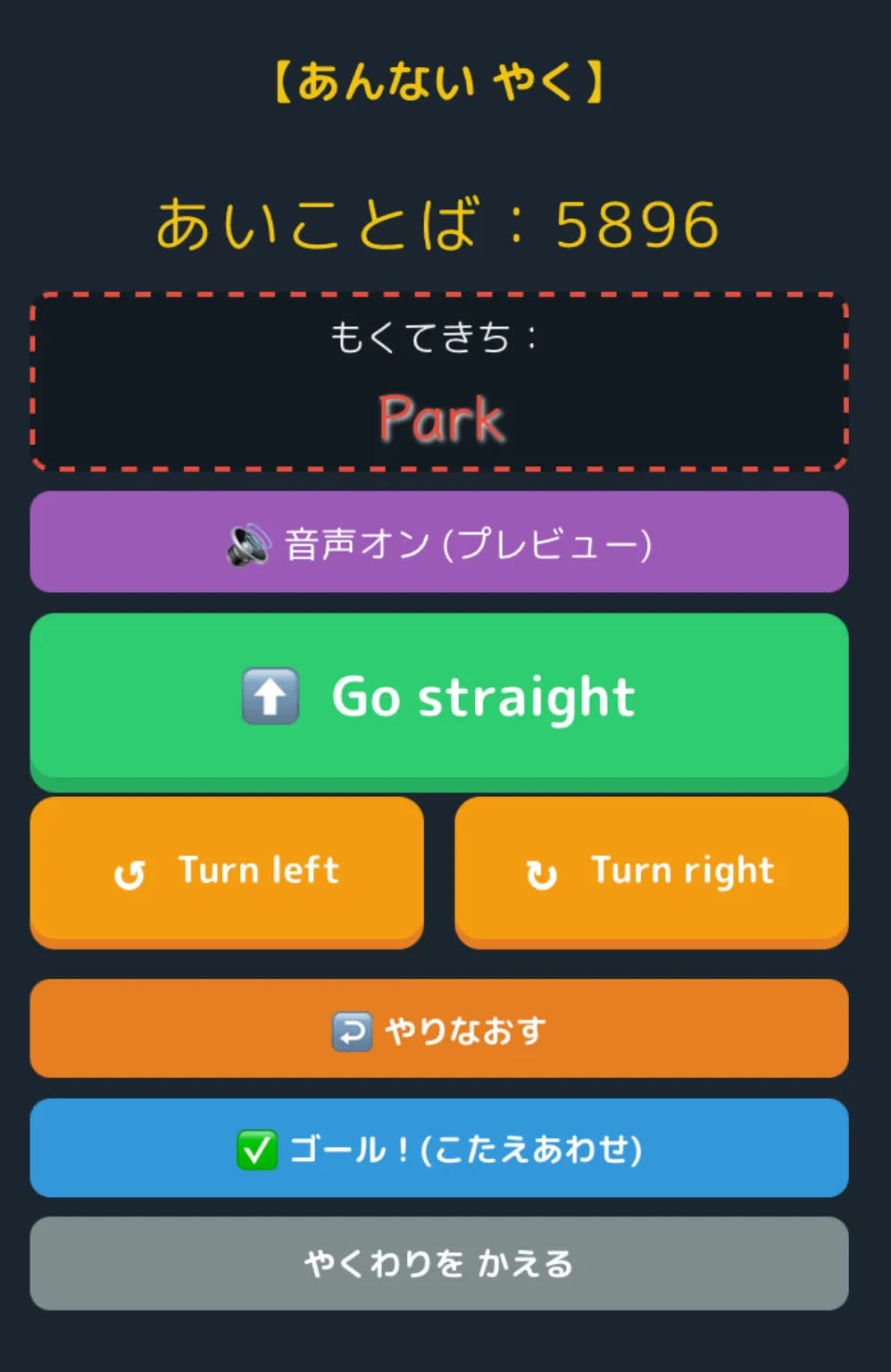
Press the button to hear native pronunciation. Once confirmed by ear and eye, give instructions to the partner!
⑤ Intuitive TPR Operation
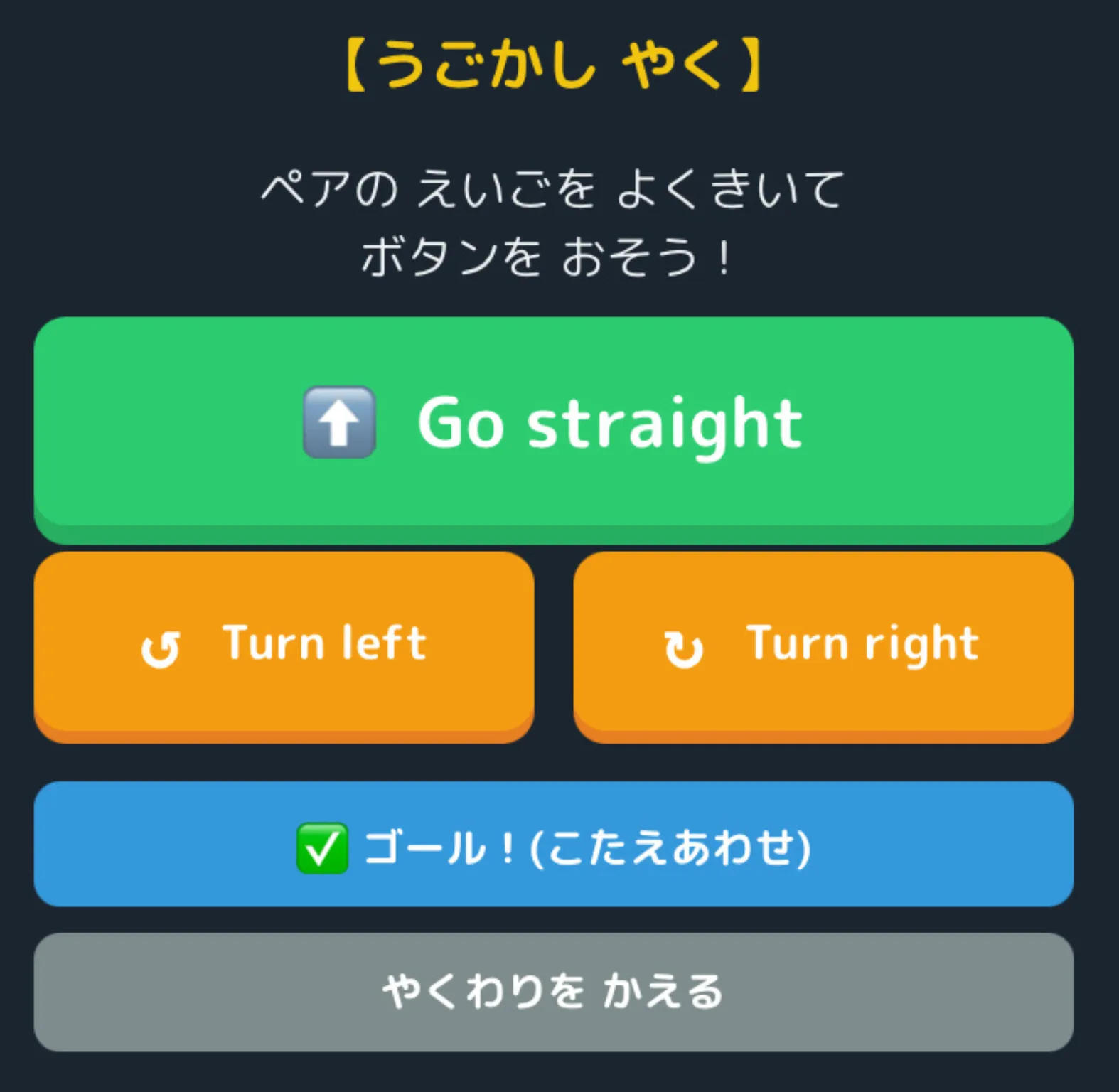
The operator listens to the instructions and presses the buttons. Words and movements (TPR) are directly linked.
⑥ “Check Answers”!
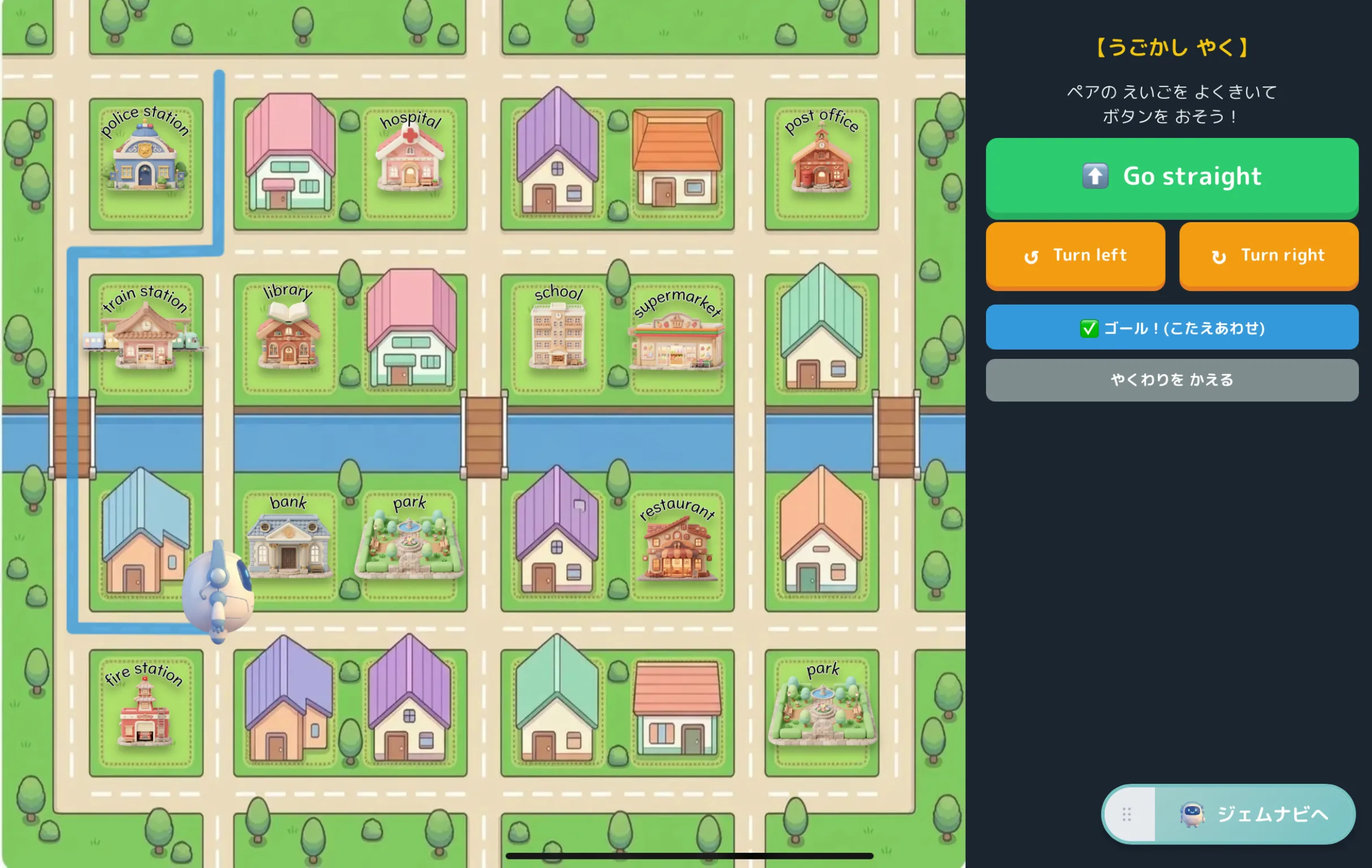
When you reach the destination, show each other your screens. If the “Red Route” and “Blue Footprints” match, it’s a huge success!
Let’s start a new lesson on giving directions with Gem-emon!
👉 Play the app for free* The student’s device (Kids Mode) has a safe design that disables the browser’s back button.