
Is a 100-square math grid too much for some of your students?
Thank you for all the hard work you put into your classroom every day!
Hi, I’m Gem-emon, the development partner of Deji-Lab, a free app site made by an elementary school teacher in Oita, Japan.
Grid math is a classic calculation drill from Japan. Numbers run along the top and the left side of a grid, and students fill in each square with the answer. In Japan, the 10×10 version, known as “100-square calculation,” has been popular in classrooms for decades.
Our “Endless! 100-Square Math” app has been a big hit with teachers. But we also heard comments like these:
“100 squares is a lot. Students who find math hard often lose focus halfway through.”
“If we could start with fewer squares, it would be much easier for students who need extra support.”
That’s so true! Seeing 100 empty squares at once can feel overwhelming. Building success through small steps really matters in learning.
So we made “Pick Your Size! Grid Math”, shaped by teachers’ wishes. With our latest update, it now has a left-handed mode on tablets and works in English and Korean, too.
5 Key Features
1. Choose from 7 grid sizes, from 9 to 100 squares!
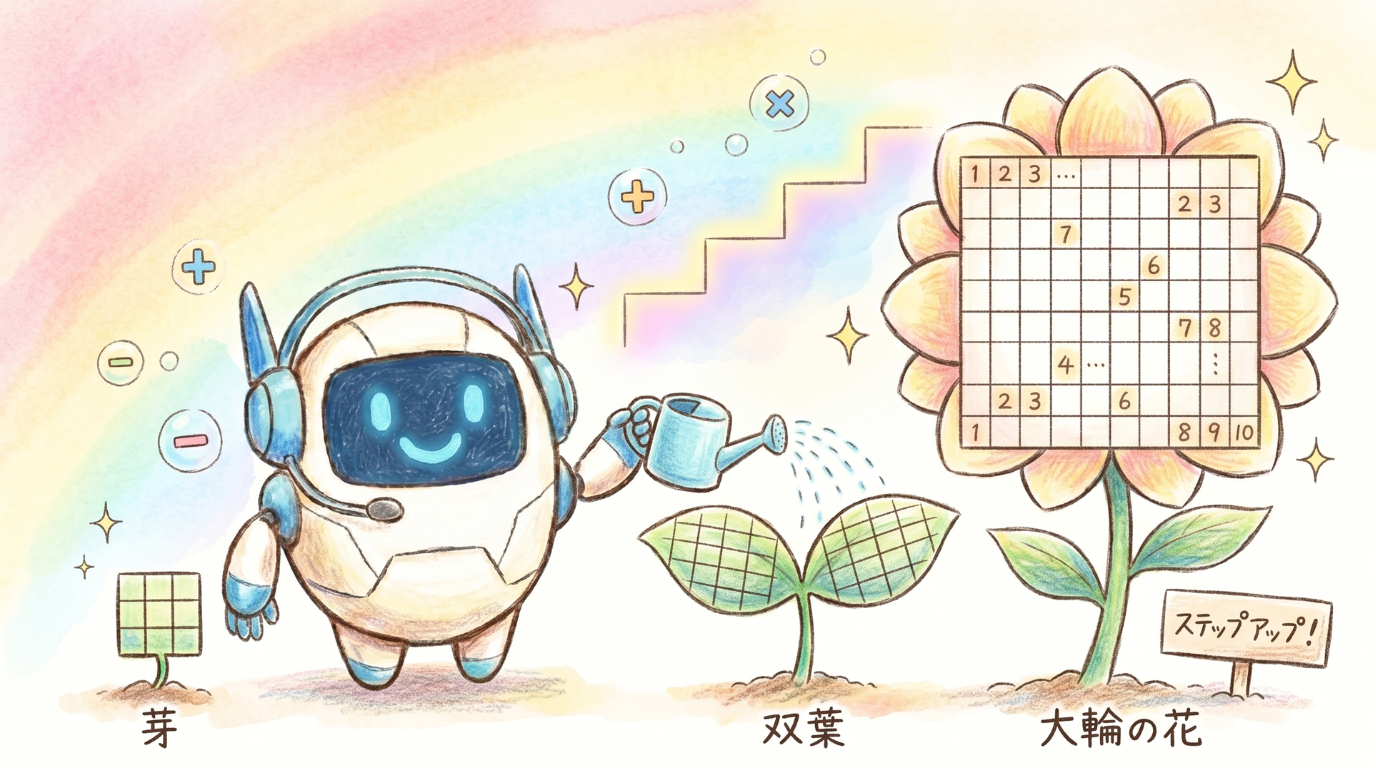
The biggest feature of this app is that you can choose how many squares to solve.
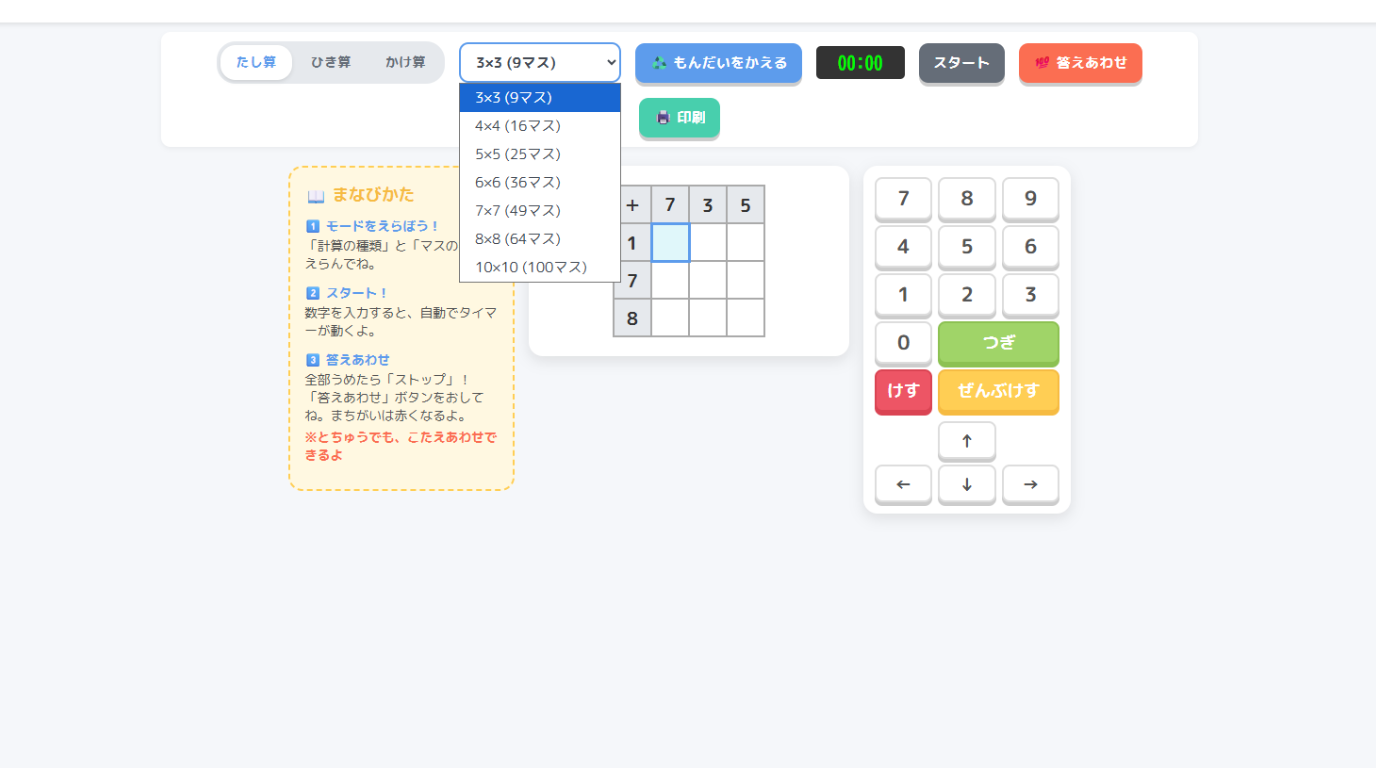
There are 7 sizes, so you can match each student’s level.
- 3×3 (9 squares), 4×4 (16 squares): Start here! A quick win in under a minute.
- 5×5 (25 squares), 6×6 (36 squares): For students who are getting the hang of it. Perfect for a short warm-up at the start of class.
- 7×7 (49 squares), 8×8 (64 squares): A stepping stone toward the full grid.
- 10×10 (100 squares): The classic challenge!
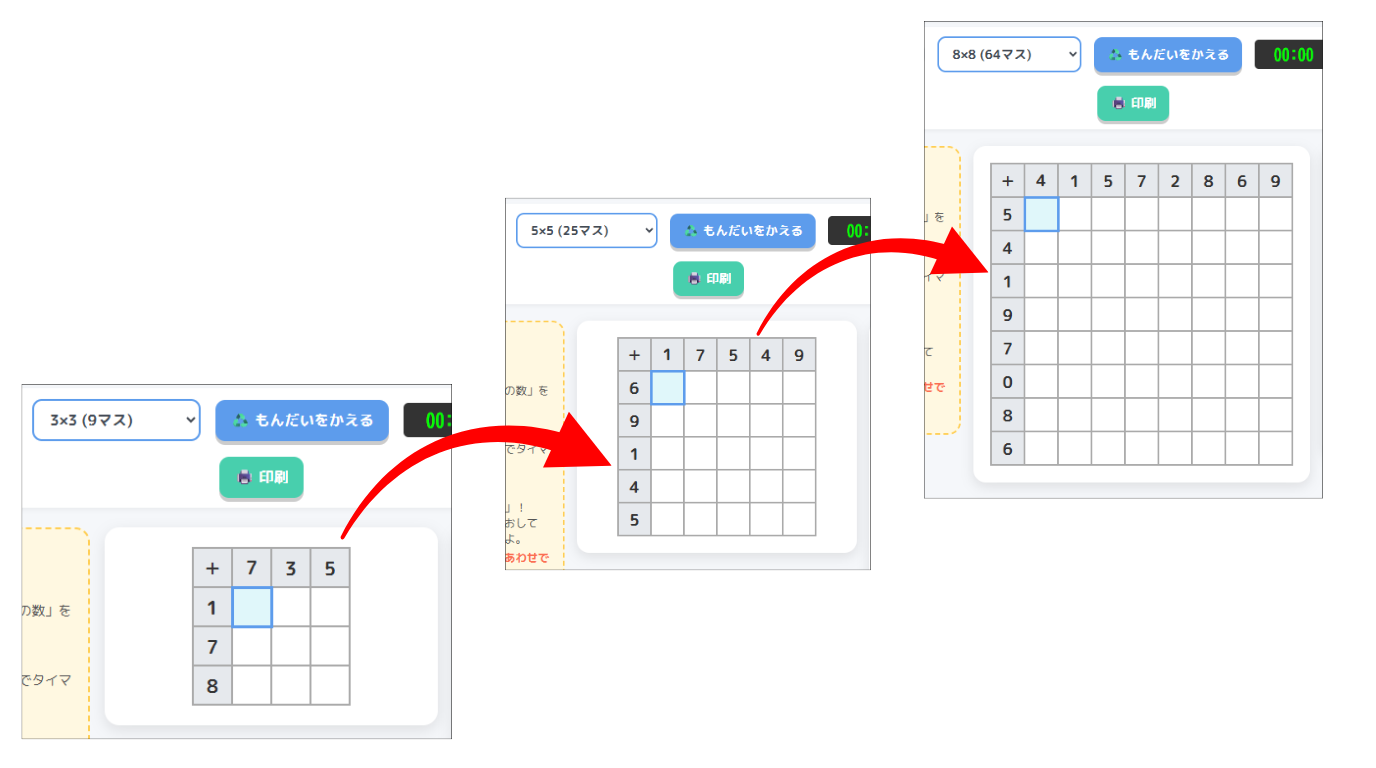
Press “New problems,” and the numbers shuffle instantly. You can choose addition, subtraction (with regrouping), or multiplication. The app also remembers the math type and grid size you used last, so you don’t have to set it up every time.
2. Solve right on a tablet, with auto-grading
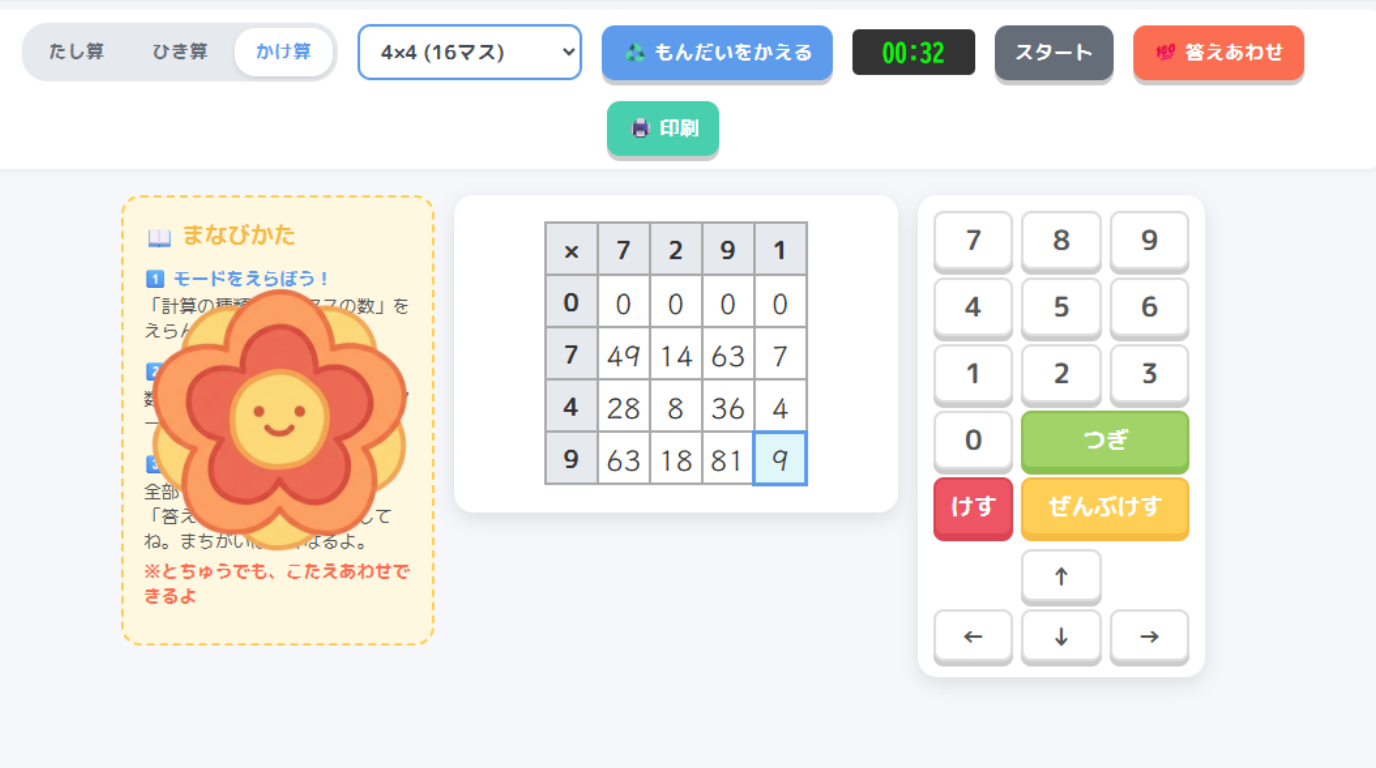
Students enter answers with the on-screen number keys, and the timer starts by itself. When every square is filled, they press “Check answers.” The timer stops, and only the wrong answers turn red. If everything is correct, a big “hanamaru” appears with their time! (A hanamaru is the flower-shaped circle that Japanese teachers draw on excellent work.)
Students can also check their work before they finish. The app shows results like “20 of 25 correct” and “Squares left: 3,” so they can fix mistakes and keep going at their own pace.
Here are a few more helpful details.
- Squares that fit the screen: Small grids are shown with big squares, so younger students can tap them easily.
- Progress is saved: Answers and time stay on the device for 12 hours. If the app closes by accident, students can pick up where they left off.
- No accidental erasing: If a student presses “New problems” in the middle of a grid, the app asks first.
- Keyboard friendly: On a computer, or a tablet with a keyboard, students can type numbers and use the arrow keys.
3. Double-sided worksheets with answer keys, in seconds
Every grid size can also be printed. Press “Print” to make a worksheet that fits neatly on a landscape A4 page.
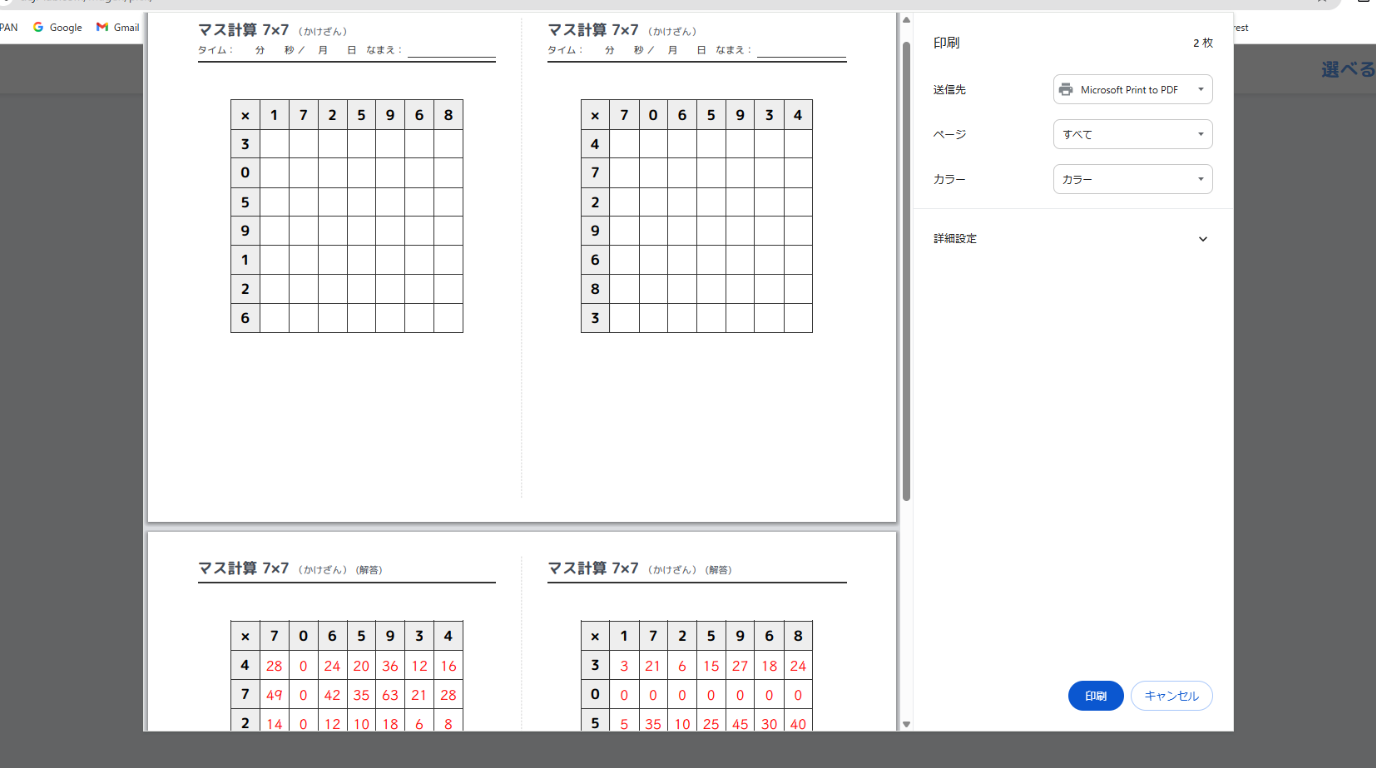
The left and right halves show two different problem sets. Print double-sided (flip on short edge) and cut the sheet in half, and you get two worksheets with their answer keys on the back. Before printing, the app reminds you which setting to choose.
The squares on paper change size, too. Grids from 9 to 25 squares use large squares, up to 2 cm wide, so they’re easy to write in. Even the 100-square grid fits neatly on half a page.
4. Friendly for left-handed students, on paper and on tablets

A teacher once pointed out something important: “When left-handed students write, their hand covers the numbers on the left side of the grid.” So we added a “🖨️ Print (left-handed)” button.
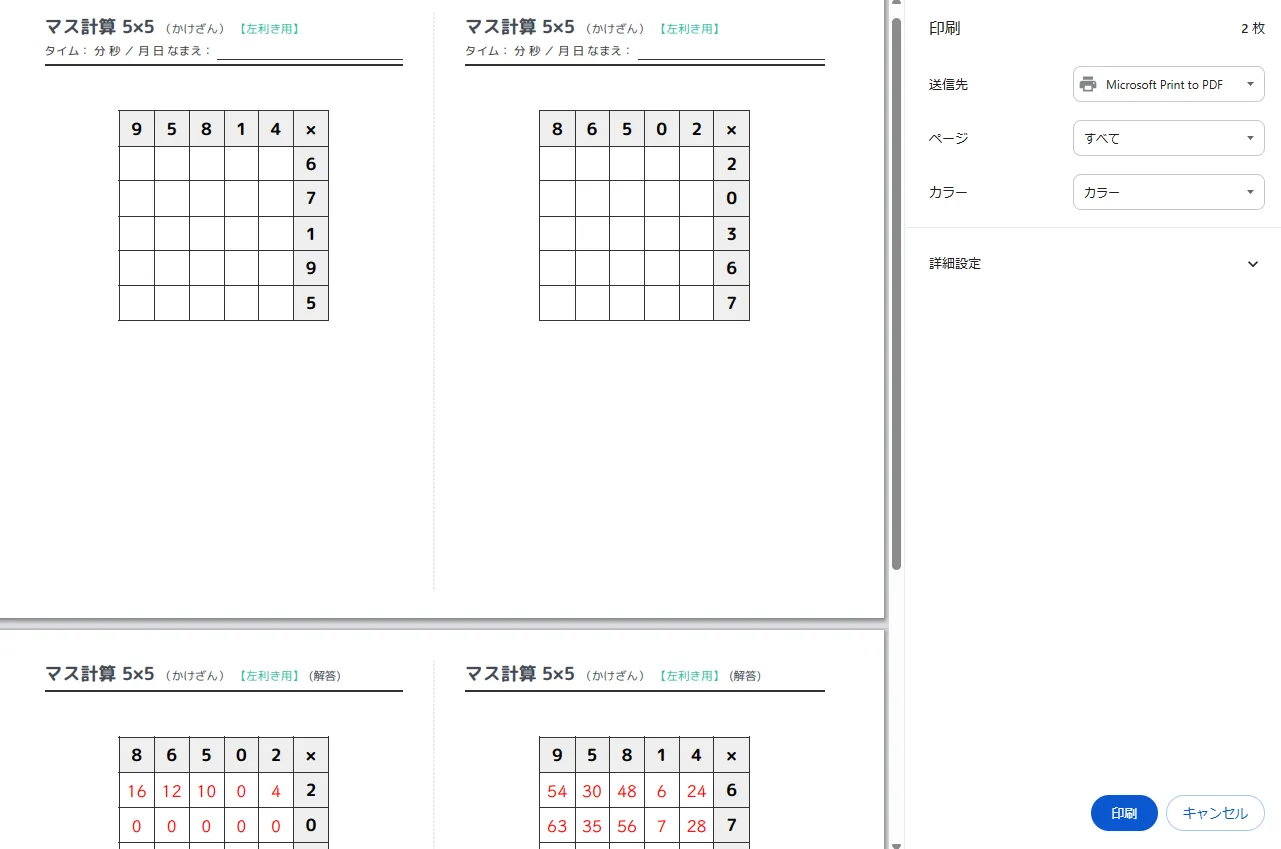
With one tap, you get the same problems with the side numbers moved to the right. Left-handed students can keep their hand in place and focus on the math.
NEW! There’s now a “🤚 Left-handed mode” for solving on a tablet, too. When the number keys are on the right, a left-handed student’s arm crosses over the grid and hides the problems with every tap. Left-handed mode fixes this.
- Number keys move to the left: Students can tap with their left hand without covering the grid.
- Side numbers move to the right: It matches the left-handed worksheet, so paper and tablet feel the same.
- Starts at the top-right square: “Next” moves from right to left.
- Remembered for next time: Turn it on once, and it stays on.
5. NEW! Works in English, Japanese, and Korean
Use the 🌐 menu in the top right corner to switch between 日本語, English, and 한국어. Buttons, instructions, and even the titles and name lines on printed worksheets change to the language you choose.
Use it in English lessons, too
Grid math is a great way to practice saying numbers and math sentences in English. Switch the app to English and try activities like these.
- Read it aloud: After filling in a square, students say the math sentence: “Seven plus five is twelve.” / “Fifteen minus eight is seven.” / “Six times four is twenty-four.”
- Pair quiz: One student points to a square and asks, “What’s nine plus three?” The partner answers, “It’s twelve!”
- Time challenge: After checking, students share their record: “My time is one minute and ten seconds!”
How to Use
- STEP 1: Choose Add, Subtract, or Multiply, and pick a grid size from the menu. Left-handed students can turn on “🤚 Left-handed mode.”
- STEP 2: Type the first number, and the timer starts! Press “Next” to move to the next square.
- STEP 3: When every square is filled, press “Check answers.” The timer stops automatically. Go for the hanamaru!
👇 Try it in your classroom today! 👇
📱 Open Pick Your Size! Grid Math